Showing posts with label Sansui Stock Rom. Show all posts

Sunday, 24 April 2016

Sansui S25 Flash File


 Sansui S25 Flash File Download

DOWNLOAD HERE


Description;all the following sansui stock rom contains original sansui usb driver flash tool and flash files after downloading the firmware follow the instruction manual to flash the firmware on your device.


how to flash


step 1-Download and extract the sansui S25 stock firmware on your computer.
step 2-after extracting you will get the firmware file, flash tool,Driver and how to flash guide.
step 3-install the usb driver on your computer
step 4-follow the how to flash guide to flash the firmware on your sansui S25 device.

Follow Detailed Guidelines


Use Of Firmware File And Tools:


update and re-install your firmware, Blinking repair, Imei repair, Dead handset Recovery, Format, reset to factory, hard reset, unlock, remove pattern lock etc.


Note: use of firmware file and tool on you own risk. we don't take any responsibility of any damage of your handset. always read firmware update instruction carefully.

Sansui S24 Flash File


Sansui S24 Flash File Download


Download Firmware:


V3 (B105AC_HR New & OLD)


V3 (B105AC_TYF)


Test Ver


S24_B111_B105A_121211_HR_NEW&TYF.rar


Description;all the following sansui stock rom contains original sansui usb driver flash tool and flash files after downloading the firmware follow the instruction manual to flash the firmware on your device.


how to flash


step 1-Download and extract the sansui S24 stock firmware on your computer.
step 2-after extracting you will get the firmware file, flash tool,Driver and how to flash guide.
step 3-install the usb driver on your computer
step 4-follow the how to flash guide to flash the firmware on your sansui S24 device.

Follow Detailed Guidelines


Use Of Firmware File And Tools:

update and re-install your firmware, Blinking repair, Imei repair, Dead handset Recovery, Format, reset to factory, hard reset, unlock, remove pattern lock etc.

Note: use of firmware file and tool on you own risk. we don't take any responsibility of any damage of your handset. always read firmware update instruction carefully.

Sansui S23 Flash File


Download Here............


S23_SW_file_for_Field.rar


ResearchDownload_Tool.rar


Flashing_procedure_-_S23.docx


Description;all the following sansui stock rom contains original sansui usb driver flash tool and flash files after downloading the firmware follow the instruction manual to flash the firmware on your device.


how to flash


step 1-Download and extract the sansui S23 stock firmware on your computer.
step 2-after extracting you will get the firmware file, flash tool,Driver and how to flash guide.
step 3-install the usb driver on your computer
step 4-follow the how to flash guide to flash the firmware on your sansui S23 device.

Follow Detailed Guidelines


Use Of Firmware File And Tools:


update and re-install your firmware, Blinking repair, Imei repair, Dead handset Recovery, Format, reset to factory, hard reset, unlock, remove pattern lock etc.

Note: use of firmware file and tool on you own risk. we don't take any responsibility of any damage of your handset. always read firmware update instruction carefully.

Sansui H50T Flash File


Sansui H50T Flash File Download

DOWNLOAD HERE


Description;all the following sansui stock rom contains original sansui usb driver flash tool and flash files after downloading the firmware follow the instruction manual to flash the firmware on your device.


how to flash


step 1-Download and extract the sansui H50T stock firmware on your computer.
step 2-after extracting you will get the firmware file, flash tool,Driver and how to flash guide.
step 3-install the usb driver on your computer
step 4-follow the how to flash guide to flash the firmware on your sansui H50T device.

Follow Detailed Guidelines


Use Of Firmware File And Tools:

update and re-install your firmware, Blinking repair, Imei repair, Dead handset Recovery, Format, reset to factory, hard reset, unlock, remove pattern lock etc.

Note: use of firmware file and tool on you own risk. we don't take any responsibility of any damage of your handset. always read firmware update instruction carefully.

Sansui H48 Flash File


 Sansui H48 Flash File Download

DOWNLOAD HERE


Description;all the following sansui stock rom contains original sansui usb driver flash tool and flash files after downloading the firmware follow the instruction manual to flash the firmware on your device.


how to flash


step 1-Download and extract the sansui H48 stock firmware on your computer.
step 2-after extracting you will get the firmware file, flash tool,Driver and how to flash guide.
step 3-install the usb driver on your computer
step 4-follow the how to flash guide to flash the firmware on your sansui H48 device.


Follow Detailed Guidelines


HOW TO FLASH .PAC STOCK FIRMWARE ROM FOR ANDROID DEVICES FULL GUIDE


Sansui SA32 flash file


 Sansui SA32 Mobile Flash File

DOWNLOAD HERE


Description;all the following sansui stock rom contains original sansui usb driver flash tool and flash files after downloading the firmware follow the instruction manual to flash the firmware on your device.


how to flash


step 1-Download and extract the sansui SA32 stock firmware on your computer.
step 2-after extracting you will get the firmware file, flash tool,Driver and how to flash guide.
step 3-install the usb driver on your computer
step 4-follow the how to flash guide to flash the firmware on your sansui SA32 device.


Follow Detailed Guidelines


HOW TO FLASH .PAC STOCK FIRMWARE ROM FOR ANDROID DEVICES FULL GUIDE


Sansui SA40 flash file

Sansui SA40 Mobile Flash File

DOWNLOAD HERE


Description;all the following sansui stock rom contains original sansui usb driver flash tool and flash files after downloading the firmware follow the instruction manual to flash the firmware on your device.

how to flash


step 1-Download and extract the sansui SA40 stock firmware on your computer.
step 2-after extracting you will get the firmware file, flash tool,Driver and how to flash guide.
step 3-install the usb driver on your computer
step 4-follow the how to flash guide to flash the firmware on your sansui SA40 device.


Follow Detailed Guidelines


HOW TO FLASH .PAC STOCK FIRMWARE ROM FOR ANDROID DEVICES FULL GUIDE


Sansui SA4011 flash file

 Sansui SA4011 Mobile

DOWNLOAD HERE


Description;all the following sansui stock rom contains original sansui usb driver flash tool and flash files after downloading the firmware follow the instruction manual to flash the firmware on your device.


how to flash


step 1-Download and extract the sansui SA4011 stock firmware on your computer.
step 2-after extracting you will get the firmware file, flash tool,Driver and how to flash guide.
step 3-install the usb driver on your computer
step 4-follow the how to flash guide to flash the firmware on your sansui SA4011 device.

Follow Detailed Guidelines


HOW TO FLASH .PAC STOCK FIRMWARE ROM FOR ANDROID DEVICES FULL GUIDE


Step no 1: Download & Install Spreadtrum Android USB Drivers on your Laptop or Computer. If your computer Already have Spreadtrum Driver then SKIP this Step.

Step no 2: Download your Device Compatible Stock Firmware (.pac) for your Android Device.

Step 3: Download & extract Spreadtrum Upgrade Flash Tool to your computer. After extracting, you will see these following files:


Step no 4: Now, Run The UpgradeDownload.exe. in SPD Tool


Step no 5: Once Spreadtrum Upgrade Tool SPD is Fully launched, connect your Android Smartphone to the computer or Laptop (Confirm That your device is switch off).


Step no 6: Once your Android Device is connected successfully with the computer, Now click on the Load Packed Button Option and add the .pac Firmware file (stock Firmware which comes as .pac).


Step no 7: After you have successfully added the .Pac Firmware file in Spreadtrum SPD Upgrade Tool, Now Tab on the Start Downloading button to Start the flashing.


Step no 8: During the flashing procedure your Android device will restart automatically. Once Firmware flashing is completed, you will see the Green Passed Message Option in The SPD Spreadtrum Upgrade Tool.


Step no 9: Now Congrats you have successfully flashed your Android Smartphone using via SPD Spreadtrum Upgrade Tool. After Then your Android Device is successfully restarted, Go to Settings > About Phone > Check firmware version.

Sansui SA41 V2.10 flash file

 Sansui  mobile SA41 V2.10

Sansui  mobile SA41 V2.10 flash file

DOWNLOAD HERE


Description;all the following sansui stock rom contains original sansui usb driver flash tool and flash files after downloading the firmware follow the instruction manual to flash the firmware on your device.


how to flash


step 1-Download and extract the sansui SA41 stock firmware on your computer.
step 2-after extracting you will get the firmware file, flash tool,Driver and how to flash guide.
step 3-install the usb driver on your computer
step 4-follow the how to flash guide to flash the firmware on your sansui SA41 device.


Follow Detailed Guidelines


HOW TO FLASH .PAC STOCK FIRMWARE ROM FOR ANDROID DEVICES FULL GUIDE

Step no 1: Download & Install Spreadtrum Android USB Drivers on your Laptop or Computer. If your computer Already have Spreadtrum Driver then SKIP this Step.

Step no 2: Download your Device Compatible Stock Firmware (.pac) for your Android Device.

Step 3: Download & extract Spreadtrum Upgrade Flash Tool to your computer. After extracting, you will see these following files:


 Step no 4: Now, Run The UpgradeDownload.exe. in SPD Tool

Step no 5: Once Spreadtrum Upgrade Tool SPD is Fully launched, connect your Android Smartphone to the computer or Laptop (Confirm That your device is switch off).


Step no 6: Once your Android Device is connected successfully with the computer, Now click on the Load Packed Button Option and add the .pac Firmware file (stock Firmware which comes as .pac).


 Step no 7: After you have successfully added the .Pac Firmware file in Spreadtrum SPD Upgrade Tool, Now Tab on the Start Downloading button to Start the flashing.


Step no 8: During the flashing procedure your Android device will restart automatically. Once Firmware flashing is completed, you will see the Green Passed Message Option in The SPD Spreadtrum Upgrade Tool.
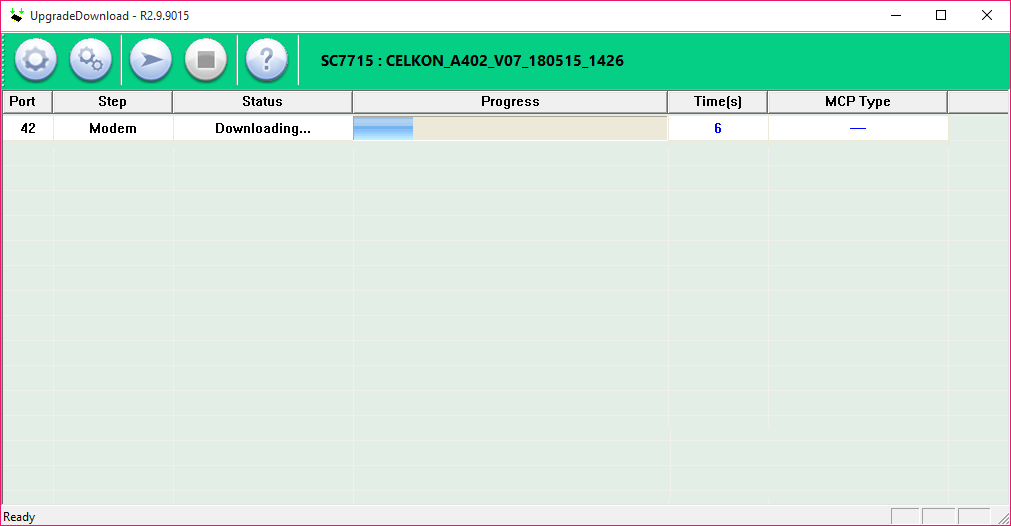


Step no 9: Now Congrats you have successfully flashed your Android Smartphone using via SPD Spreadtrum Upgrade Tool. After Then your Android Device is successfully restarted, Go to Settings > About Phone > Check firmware version.

Sansui SA41 flash file


 Sansui SA41 V2.08 Mobile

Sansui SA41 V2.08 or V2.10 Mobile

download here


Sansui SA41 20130318 V2.08


Sansui SA41 20130508 V2.10 


Description;all the following sansui stock rom contains original sansui usb driver flash tool and flash files after downloading the firmware follow the instruction manual to flash the firmware on your device.


how to flash


step 1-Download and extract the sansui SA41 stock firmware on your computer.
step 2-after extracting you will get the firmware file, flash tool,Driver and how to flash guide.
step 3-install the usb driver on your computer
step 4-follow the how to flash guide to flash the firmware on your sansui SA41 device.


Follow Detailed Guidelines


HOW TO FLASH .PAC STOCK FIRMWARE ROM FOR ANDROID DEVICES FULL GUIDE

Step no 1: Download & Install Spreadtrum Android USB Drivers on your Laptop or Computer. If your computer Already have Spreadtrum Driver then SKIP this Step.

Step no 2: Download your Device Compatible Stock Firmware (.pac) for your Android Device.

Step 3: Download & extract Spreadtrum Upgrade Flash Tool to your computer. After extracting, you will see these following files:


Step no 4: Now, Run The UpgradeDownload.exe. in SPD Tool


Step no 5: Once Spreadtrum Upgrade Tool SPD is Fully launched, connect your Android Smartphone to the computer or Laptop (Confirm That your device is switch off).


Step no 6: Once your Android Device is connected successfully with the computer, Now click on the Load Packed Button Option and add the .pac Firmware file (stock Firmware which comes as .pac).


Step no 7: After you have successfully added the .Pac Firmware file in Spreadtrum SPD Upgrade Tool, Now Tab on the Start Downloading button to Start the flashing.


Step no 8: During the flashing procedure your Android device will restart automatically. Once Firmware flashing is completed, you will see the Green Passed Message Option in The SPD Spreadtrum Upgrade Tool.


Step no 9: Now Congrats you have successfully flashed your Android Smartphone using via SPD Spreadtrum Upgrade Tool. After Then your Android Device is successfully restarted, Go to Settings > About Phone > Check firmware version.


Sansui SA42G flash file


 Sansui SA42G mobile flash file

download here


Description;all the following sansui stock rom contains original sansui usb driver flash tool and flash files after downloading the firmware follow the instruction manual to flash the firmware on your device.


how to flash


step 1-Download and extract the sansui SA42G stock firmware on your computer.
step 2-after extracting you will get the firmware file, flash tool,Driver and how to flash guide.
step 3-install the usb driver on your computer
step 4-follow the how to flash guide to flash the firmware on your sansui SA42G device.

Follow Detailed Guidelines


HOW TO FLASH .PAC STOCK FIRMWARE ROM FOR ANDROID DEVICES FULL GUIDE

Step no 1: Download & Install Spreadtrum Android USB Drivers on your Laptop or Computer. If your computer Already have Spreadtrum Driver then SKIP this Step.

Step no 2: Download your Device Compatible Stock Firmware (.pac) for your Android Device.

Step 3: Download & extract Spreadtrum Upgrade Flash Tool to your computer. After extracting, you will see these following files:


Step no 4: Now, Run The UpgradeDownload.exe. in SPD Tool


Step no 5: Once Spreadtrum Upgrade Tool SPD is Fully launched, connect your Android Smartphone to the computer or Laptop (Confirm That your device is switch off).


Step no 6: Once your Android Device is connected successfully with the computer, Now click on the Load Packed Button Option and add the .pac Firmware file (stock Firmware which comes as .pac).


Step no 7: After you have successfully added the .Pac Firmware file in Spreadtrum SPD Upgrade Tool, Now Tab on the Start Downloading button to Start the flashing.


Step no 8: During the flashing procedure your Android device will restart automatically. Once Firmware flashing is completed, you will see the Green Passed Message Option in The SPD Spreadtrum Upgrade Tool.


Step no 9: Now Congrats you have successfully flashed your Android Smartphone using via SPD Spreadtrum Upgrade Tool. After Then your Android Device is successfully restarted, Go to Settings > About Phone > Check firmware version.

Sansui SA50 flash file


sansui mobile Sa50 flash file

download here


Description;all the following sansui stock rom contains original sansui usb driver flash tool and flash files after downloading the firmware follow the instruction manual to flash the firmware on your device.


how to flash


step 1-Download and extract the sansui SA50 stock firmware on your computer.
step 2-after extracting you will get the firmware file, flash tool,Driver and how to flash guide.
step 3-install the usb driver on your computer
step 4-follow the how to flash guide to flash the firmware on your sansui SA50 device.


Follow Detailed Guidelines


HOW TO FLASH .PAC STOCK FIRMWARE ROM FOR ANDROID DEVICES FULL GUIDE
Step no 1: Download & Install Spreadtrum Android USB Drivers on your Laptop or Computer. If your computer Already have Spreadtrum Driver then SKIP this Step.

Step no 2: Download your Device Compatible Stock Firmware (.pac) for your Android Device.

Step 3: Download & extract Spreadtrum Upgrade Flash Tool to your computer. After extracting, you will see these following files:


Step no 4: Now, Run The UpgradeDownload.exe. in SPD Tool


Step no 5: Once Spreadtrum Upgrade Tool SPD is Fully launched, connect your Android Smartphone to the computer or Laptop (Confirm That your device is switch off).


Step no 6: Once your Android Device is connected successfully with the computer, Now click on the Load Packed Button Option and add the .pac Firmware file (stock Firmware which comes as .pac).


Step no 7: After you have successfully added the .Pac Firmware file in Spreadtrum SPD Upgrade Tool, Now Tab on the Start Downloading button to Start the flashing.


Step no 8: During the flashing procedure your Android device will restart automatically. Once Firmware flashing is completed, you will see the Green Passed Message Option in The SPD Spreadtrum Upgrade Tool.


Step no 9: Now Congrats you have successfully flashed your Android Smartphone using via SPD Spreadtrum Upgrade Tool. After Then your Android Device is successfully restarted, Go to Settings > About Phone > Check firmware version.

Sansui SA50 Plus flash file


sansui sa50 plus

download here


Description;all the following sansui stock rom contains original sansui usb driver flash tool and flash files after downloading the firmware follow the instruction manual to flash the firmware on your device.


how to flash


step 1-Download and extract the sansui SA50 Plus stock firmware on your computer.
step 2-after extracting you will get the firmware file, flash tool,Driver and how to flash guide.
step 3-install the usb driver on your computer
step 4-follow the how to flash guide to flash the firmware on your sansui SA50 Plus device.


Follow Detailed Guidelines


how to flash stock rom using  smart phone flash tool


Step 1: First Download & install Android ADB drivers on your PC.

Step 2: Power off your Android smart phone and attach it to your PC. Ensure the phone is detected in Device Manager section. If not, then install the ADB driver while disabling Driver Signature.

Step 3: Now, you need to download a stock ROM like we have a Micromax Canvas 2 Stock ROM. Please download the ROM with scatter.txt file, as our Flash tool will only work if the scatter.txt file is present in the ROM folder.

Step 4: Later download the Smart Flash Tool and extract all the downloaded files.

Step 5: Now open the Flash_tool.exe file and wait till it loads.


Step 6: Click on Scatter loading and browse through the scatter file present in your ROM folder.


Step 7: Ensure your device is properly connected, only then click on download.


Step 8: You will find a green download ok button stating the success of flashing.